Users & roles
At a glance
Activate newly registered users, grant them project roles, and manage FTP upload accounts — all via bulk admin actions on the User changelist.
- Time: ~2 minutes per batch of users
- Who: superusers (the Set roles action is superuser-only)
Registered users appear in the User changelist (/admin/accounts/user/). Newly registered users have is_active=False and no project roles, so they cannot log in or work on projects yet. Activating users and granting project roles is done with admin actions at the bottom of the changelist — select rows with the checkboxes, pick the action from the dropdown, click Go.
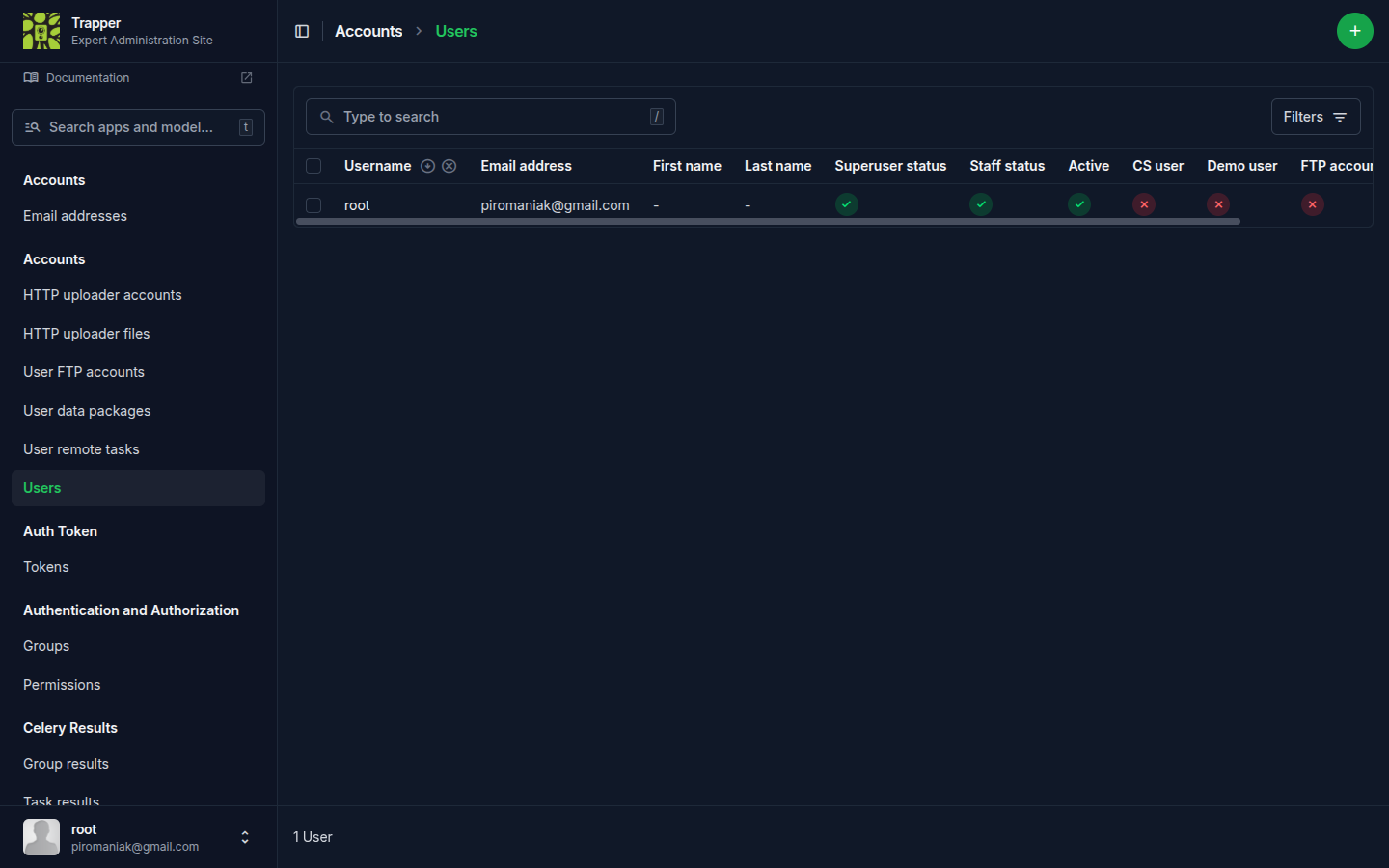
Set roles for selected users
Grants the selected users a role in one or more Research projects and/or Classification projects. Optionally flips is_active to True so users can log in immediately.
The two project types have separate role sets:
| Project type | Roles | Default in the form |
|---|---|---|
| Research project | Admin, Expert, Collaborator | Collaborator |
| Classification project | Admin, Expert, Collaborator, Citizen | Collaborator |
Only Admins can edit or delete a project; Collaborators can upload; Citizen is the role used by the Citizen Science frontend. Ownership of Resources and Collections (owner + managers) is a separate mechanism, not a project role — see Resource & Collection ownership below. For the full permission matrix across all mechanisms, see Roles & access model.
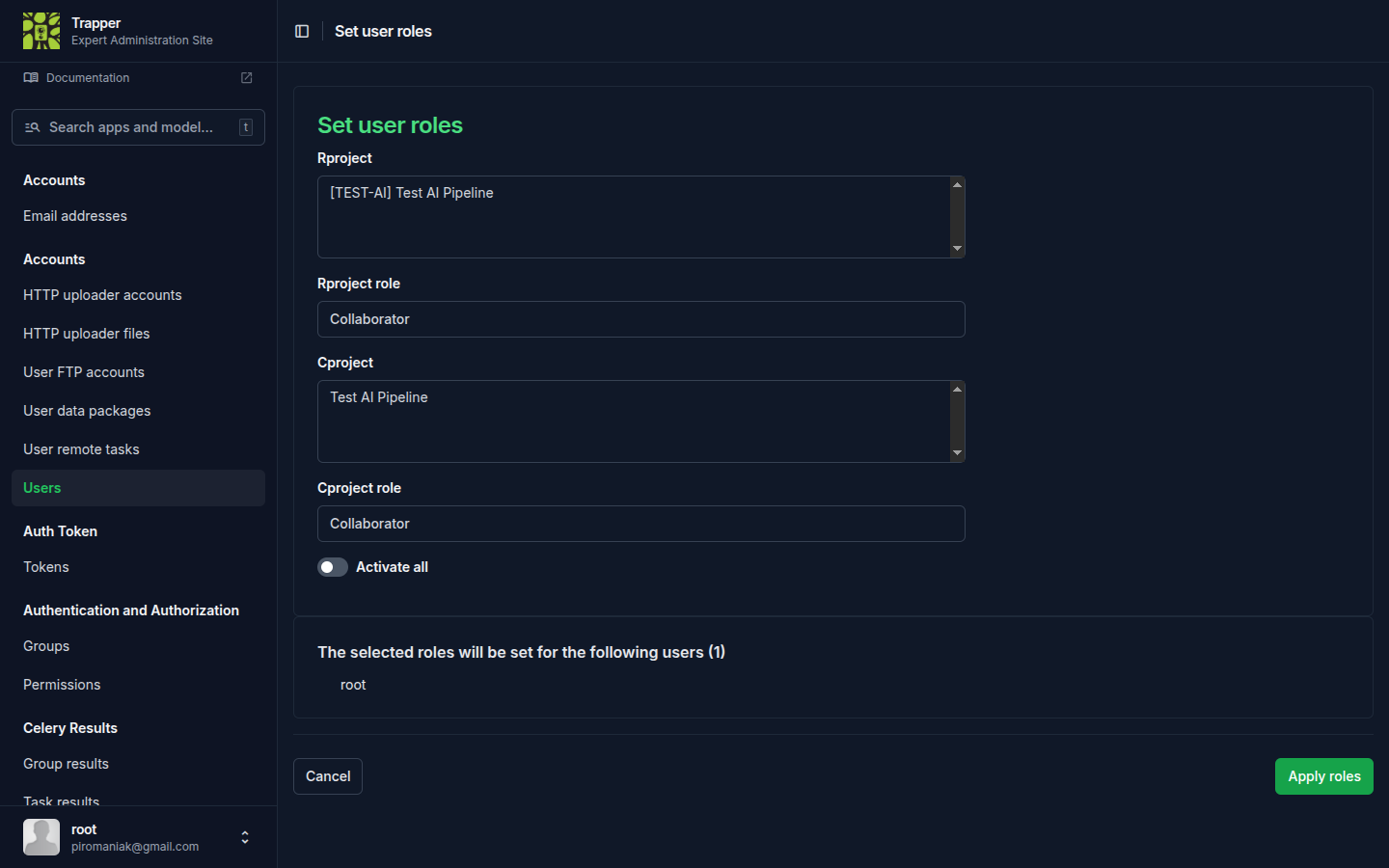
Example. A new student joins your team. Select their User row, choose Set roles for selected users, click Go, then in the form pick the research project, give them the Collaborator role on Research and the Expert role on Classification, tick Activate selected users, and submit.
Create / delete FTP accounts
Trapper's FTPS endpoint (Pure-FTPd) authenticates users against the Trapper account database. The two actions Create FTP accounts for selected users and Delete FTP accounts of selected users toggle that bridge on or off, and create/clean up the per-user directory layout in EXTERNAL_MEDIA_ROOT.
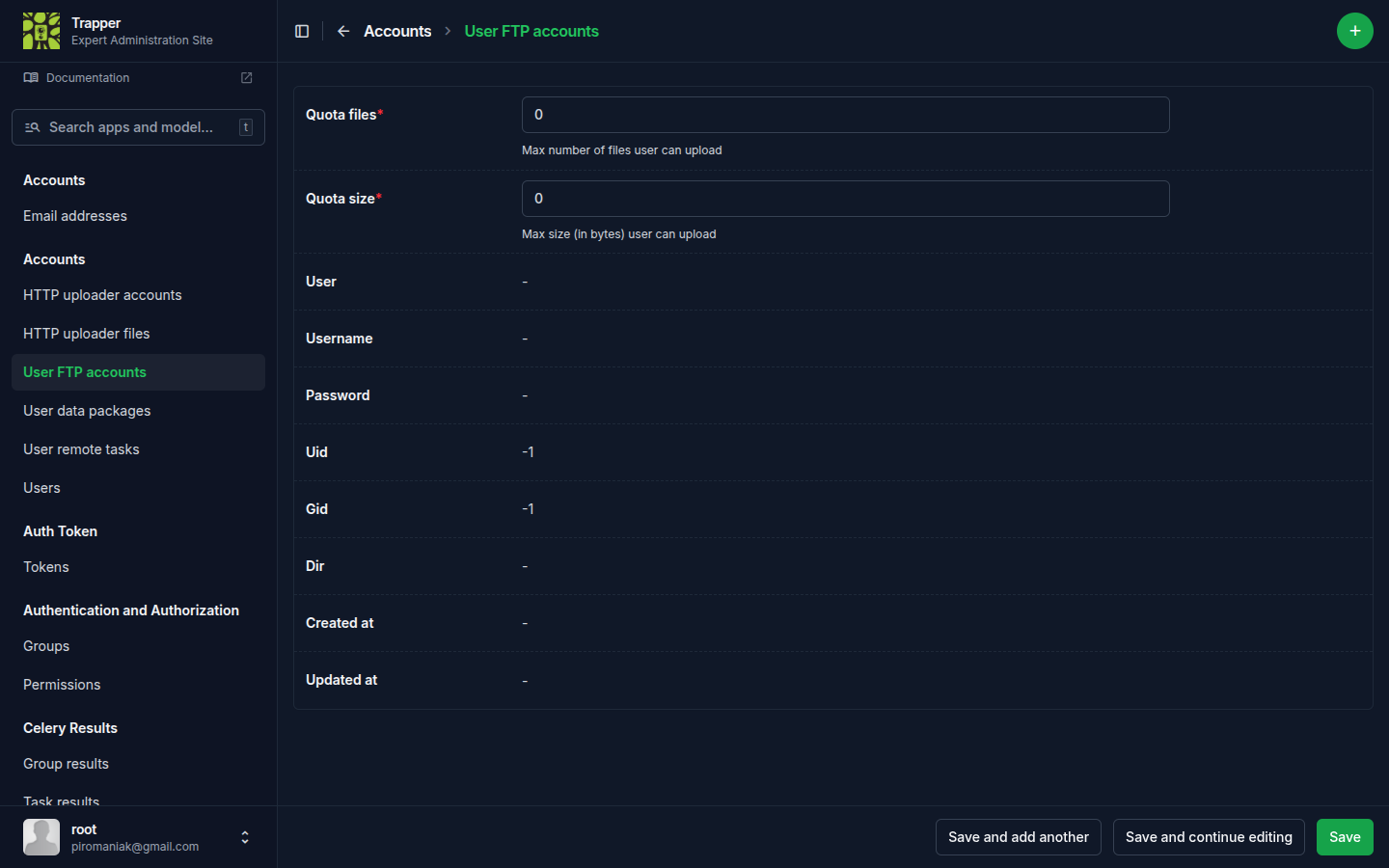
The form asks for a max file count and a quota in gigabytes; both fields are required — enter 0 for no quota (Pure-FTPd treats a zero quota as unlimited). After creating an FTP account, the user can connect with their Trapper email + password to upload data via FTPS — see Convert, package & upload with Trapper-Tools.
Send an email to selected users
Send a one-off custom email (subject + body) to all selected users. Useful for onboarding announcements, project invitations, or maintenance notices. The email backend is configured via Email service.
Mask selected Users (anonymize, keep data)
This is a separate action from the standard Delete selected Users in the dropdown — pick it instead of the bare delete whenever GDPR compliance matters. Rather than cascading the delete through everything the user owns, it masks personally identifying information on owned objects (resources, collections, classifications) and keeps the data itself intact.
Resource & Collection ownership
Set owner and managers of selected resources (Resource changelist action; also available via the Collection inline) — bulk-changes owner and managers on selected Resources. Useful when a collaborator leaves the project and you need to transfer everything they own.
generate_missing_thumbnails_for_collections on Collection — fires the async celery_update_thumbnails task for every Resource in the selected collections that's missing a thumbnail/preview. Also available globally via the Generate missing thumbnails button on the Resource changelist (runs against all Resources). For finer control or scripted regeneration, use the generate_thumbnails management command instead.
Reference
See the full admin actions reference for every action across all apps.