Deploy with trapper-setup
At a glance
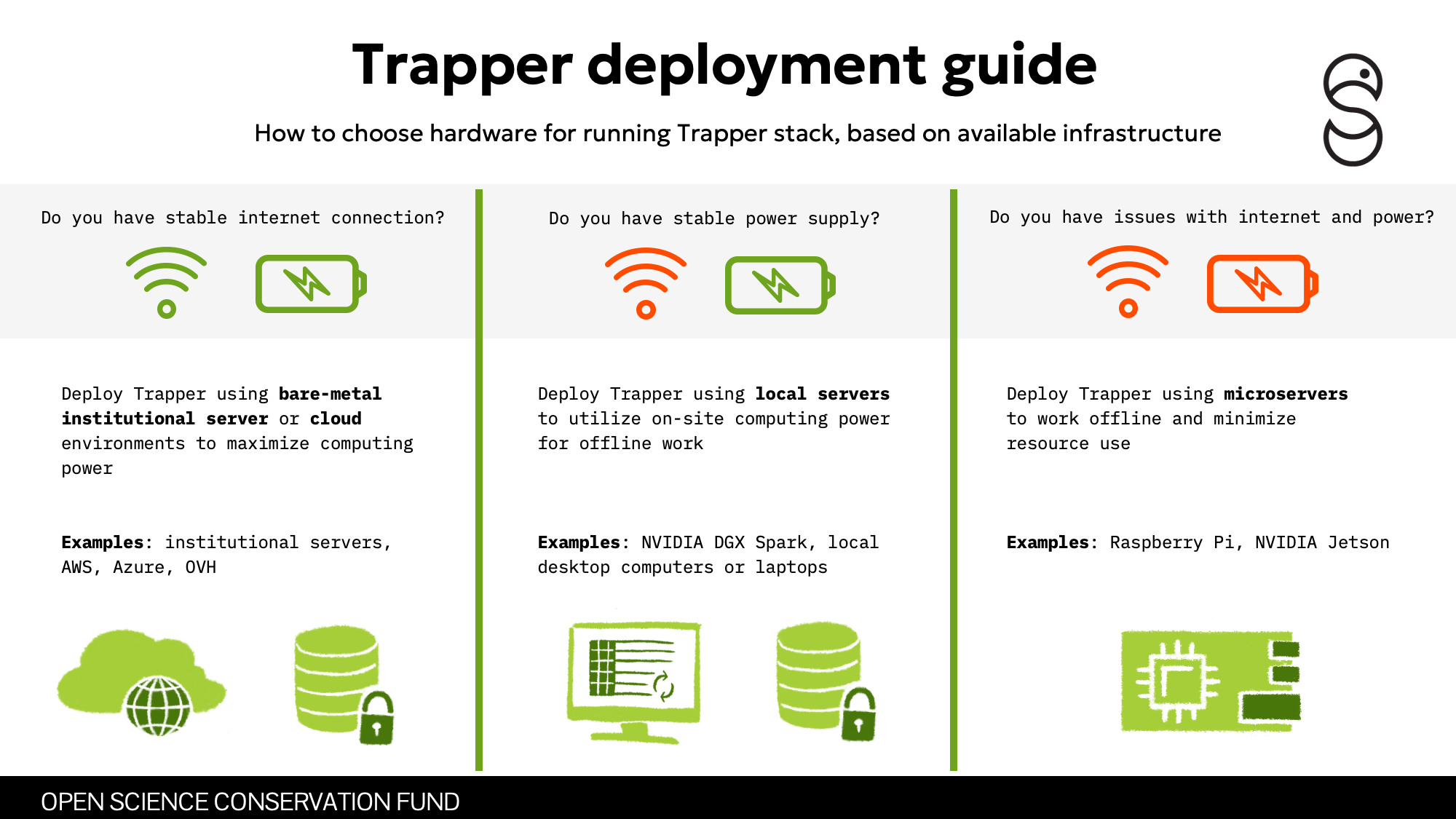
trapper-setup is the canonical install path for the whole TRAPPER ecosystem — Expert, AI Manager, AI Worker, and the Citizen Science frontend — across localhost, staging, and production, on CPU, NVIDIA GPU, or Hailo-8.
- Time: ~15–30 minutes depending on profile
- Who: anyone deploying or operating a TRAPPER instance
- Prerequisites: Docker Engine ≥ 24 + Compose v2, Python 3.11+, Git/curl
If you just want the simplest local dev setup, follow Get a localhost stack running instead — this page covers the full range of profiles and options.
Before you begin
-
trapper-setupcloned and bootstrapped (./setup.sh) - Decided which profile you need: localhost, staging, or production
- For GPU: NVIDIA driver + Container Toolkit installed
- For Hailo-8: PCIe driver,
libhailort.so, and the HailoRT Python wheel staged (see docker/hailo/README.md intrapper-setup)
Steps
1. Configure a profile
./configure.py quick --localhost
localhost (that's the <profile> to substitute below). Localhost is the default, so plain ./configure.py quick is equivalent — see the note under the table.
./configure.py quick --localhost --dev
localhost-dev. Requires the repo of every selected module cloned as a sibling of trapper-setup (e.g. trapper-ecosystem/{trapper, trapper-ai, trapper-frontend}). configure.py auto-detects them and refuses to generate the profile — with guidance on where each repo should live — if any selected module's repo is missing, so you never get the empty-bind-mount startup failure. Narrow the set with --modules (then only those repos must be present).
./configure.py quick \
    --domain example.com \
    --ssl letsencrypt \
    --modules all \
    --profile production
./configure.py interactive
--from-profile <name> or --from-env <path> to base it on an existing configuration.
| Field | What it does | Recommended value |
|---|---|---|
--modules |
Which services to run: trapper, trapper-ai, ai-worker, frontend, all (in --dev, only the selected modules' repos must be present as siblings) |
all unless resource-constrained |
--domain |
Base domain for all services. Defaults to localhost, which selects localhost mode (no Traefik, direct ports). Set a real domain for a Traefik/SSL deployment |
localhost for local, your FQDN for public |
--ssl |
letsencrypt, selfsigned, or static certs |
letsencrypt for public domains, selfsigned for staging; ignored in localhost mode (always none) |
--profile |
Name for this configuration, stored under profiles/<name>/ |
Descriptive, e.g. production, staging |
--reuse-env / -r |
Keep existing passwords/secrets, only update specified values | Use when iterating on an existing profile |
Localhost is the default
--domain defaults to localhost, and localhost mode is selected whenever the domain is localhost — so ./configure.py quick and ./configure.py quick --localhost are equivalent. The --localhost flag is only an explicit alias; you never need --no-localhost. To leave localhost mode, pass a real --domain <host> (with --ssl).
There's no accelerator flag to set
GPU/Hailo selection isn't part of configure.py — it was removed (the AI Worker host coordinator now auto-detects the hardware at runtime). As long as the NVIDIA driver or hailo-all is installed on the host, ./admin.py wizard's step 6 installs the matching runtime automatically; see step 4 below.
2. Install the AI Worker host coordinator
One-time per host, independent of profile:
./bin/install-coordinator.sh <profile>
Installs the trapperai-core tool into a uv-managed venv at ~/.local/share/uv/tools/trapperai-core/, exposing trapperai-coordinator / trapperai-ctl / trapperai-worker via ~/.local/bin/. This only installs the binaries — it does not start anything yet (see step 3). Skip this whole step if you don't need AI inference.
Reinstalling or removing the coordinator
./bin/install-coordinator.sh <profile> --reinstall
./bin/install-coordinator.sh <profile> --uninstall   # this profile's unit only
./bin/install-coordinator.sh --uninstall              # all profiles + shared venv (asks first)
3. Bring up the stack
./profiles/<profile>/start.sh
This only starts the Docker Compose backbone (Expert, AI Manager, frontend, databases, …). The helper scripts live under profiles/<profile>/, not in the trapper-setup root — always call them by their profile path. Useful flags:
./profiles/<profile>/start.sh --profile trapper --profile frontend   # only these modules, overriding configure-time choice
./profiles/<profile>/start.sh --no-flower                            # skip Celery monitoring to save resources
./profiles/<profile>/start.sh --frontend-dev                         # Angular dev server with hot reload instead of the prod build
If you installed the coordinator in step 2, start it separately — it's a host-level process, not a Compose service:
./bin/coordinator.sh <profile> --install-systemd   # persistent systemd user unit (recommended)
./bin/coordinator.sh <profile>                     # or: run it in the foreground instead
4. Run the post-deploy administration wizard
./admin.py wizard -p <profile>
See Users & roles for the full step list and how to re-run individual steps with --steps.
Verify it worked
./profiles/<profile>/ps.sh
Each profile has its own ps.sh; it forwards its arguments straight to docker compose ps, so there's no -p flag. All containers should show Up/healthy. For a host-coordinator profile, also check systemctl --user status trapperai-coord-<profile>.
Troubleshooting
SSL certificate issues (Let's Encrypt)
Ensure ports 80/443 are reachable from the internet and DNS resolves to this host. Check docker compose logs traefik.
AI Worker not processing jobs
The worker runs as the host coordinator, not a Compose service — check it with systemctl --user status trapperai-coord-<profile> and follow its logs with journalctl --user -u trapperai-coord-<profile> -f (or run it in the foreground: ./bin/coordinator.sh <profile>). For GPU, verify the container runtime sees the driver with docker run --rm --gpus all ubuntu:24.04 nvidia-smi. For Hailo, check lspci | grep Hailo, lsmod | grep hailo, and ls -l /dev/hailo0.
Database connection issues
docker compose exec postgres pg_isready (and postgres-ai for the AI Manager's database).
Remove a profile
./configure.py delete-profile <profile>             # deletes profiles/<profile>/ only
./configure.py delete-profile <profile> --volumes   # also deletes its Docker volumes
By default only the profile's files are removed; its Docker named volumes (databases, media, uploads) are kept. Add --volumes to also delete them — it lists the affected volumes and asks for confirmation, since this permanently destroys that profile's data. Stop the stack first (./profiles/<profile>/stop.sh); the command refuses to remove volumes while the profile's containers still exist.
Next steps
- Upgrade TRAPPER
- Configure an AI Manager connection
- External database if you're moving off the bundled PostgreSQL container